

 Brother Printers
 WhiteBoard
 IP PBXs





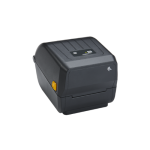
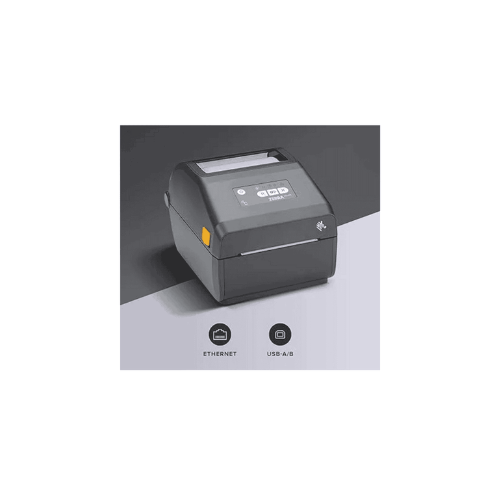

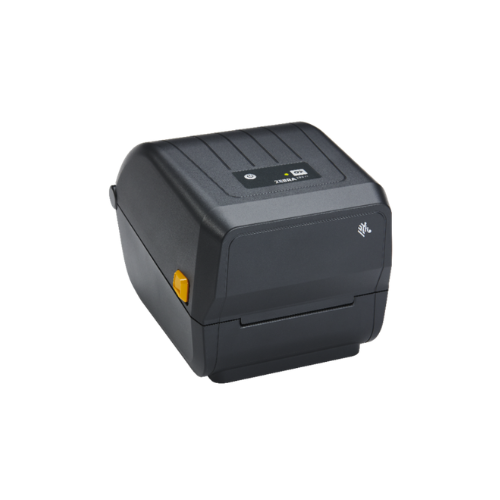
ZEBRA ZD421T Barcode Label Thermal Transfer Printer
Key Features
Brand: ZEBRA
Thermal Transfer
4 Inch Value Printer
USB and Ethernet Connectivity
Supports ZPL & EPL
203 DPI
1 Year Warranty
Ultimate Guide to Zebra ZD421t Thermal Transfer Desktop Barcode Label Printer
The Zebra ZD421t (Model: ZD4A042-301E00EZ) is an advanced, high-velocity 4-inch thermal transfer desktop label printer engineered for retail, manufacturing, logistics, and healthcare workflows. Replacing the legacy GK420t and ZD420 series, this printing system delivers a powerful architecture designed for extreme durability. It provides a reliable hardware framework that prints long-lasting labels resistant to smudging, chemicals, and outdoor exposure.
Key Features and Specifications
This commercial-grade label printer balances flexible media handling with an easy-to-use structural profile.
-
- Dual Printing Modes: Supports both thermal transfer (using ink ribbons for durable labels) and direct thermal (inkless printing) methods.
- 4-Inch Standard Print Width: Supports a versatile print area up to 4.09 inches (104 mm) wide for universal shipping and inventory layouts.
- 203 DPI Printing Resolution: Outputs crisp text and high-contrast 1D and 2D barcodes to guarantee error-free scanner processing.
- 6 IPS High-Velocity Throughput: Accelerates desktop productivity by processing media lines at speeds up to 6 inches (152 mm) per second.
- Ribbon Cartridge & Core Compatibility: Accepts both standard 300-meter ribbon cores and rapid-load ribbon cartridges to match different user preferences.
- Five Intuitive Status LED Icons: Features clear visual indicators for data, media, status, pause, and wireless link to simplify real-time diagnostics.
- Link-OS Enterprise Management: Utilizes an advanced internal operating system for remote fleet tracking, configuration updates, and encryption security.
Thermal Transfer Durability and Material Versatility
The Zebra ZD421t addresses label degradation problems by utilizing an aggressive dual-mode thermal transfer core. Standard direct thermal labels fade, darken, or smudge when exposed to sunlight, scraping, moisture, or heat
This model uses a heated printhead to melt resin or wax ink ribbons directly onto paper or synthetic stocks. This process creates high-contrast images that endure harsh industrial conditions. Its movable multi-position media sensor reads black marks, gaps, notches, and continuous rolls, allowing users to print on specialized materials like chemical-resistant polypropylene or freezer-grade tags without throwing errors.
Simple Plug-and-Play USB Setup Steps
Deploying your desktop thermal transfer printer into your active workspace takes only a few quick moments.
Physical Ribbon and Media Installation
-
- Press the twin yellow Release tabs on the sides of the printer frame forward to unlock and swing open the clamshell lid.
- Fit your wax or resin ink ribbon roll onto the spring-loaded upper yellow spindles, threading the ribbon backing underneath the printing block to the rewind spindle.
- Spread the spring-loaded lower media hangers open and drop in your roll of raw labels, ensuring the printing surface faces straight up.
- Feed the front edge of the label roll beneath the adjustable yellow media guides, pulling the stock slightly out past the front tear bar.
- Press the printer lid firmly down until the internal side locks snap shut, then connect the external power supply cord to a standard wall outlet.
Host Software Matching
-
- Download and install the official Zebra Setup Utilities application onto your Windows desktop computer.
- Connect the packaged high-speed USB data cable into the rear interface slot of the printer and an open port on your computer tower.
- Turn on the printer power switch located next to the data ports; the system will illuminate its status panel during self-testing.
- Open the Zebra Setup Utilities tool to automatically pair the driver architecture, allowing you to configure custom label width variables and print a high-contrast test layout page.
Dynamic Software Customization and Controls
The system features useful software tuning options to streamline enterprise-wide deployments.
-
- ZebraDesigner Blueprint Tool: Use the free bundled design application to draw customized layout parameters, insert commercial graphic logos, and embed active numbering lines into your local label templates.
- One-Touch Printhead Optimization: Adjust the internal burning dark values, print speed thresholds, or printhead pressure metrics inside the system menu to prolong the physical lifespan of your heating elements.
Frequently Asked Questions
What is the difference between the ZD421d and this ZD421t model?
The ZD421d is a direct thermal model that lacks internal ribbon spindles and can only print on heat-sensitive chemically treated paper. The ZD421t is a thermal transfer model that includes ribbon components, allowing it to print on wax/resin ribbons for highly durable labels, while retaining the ability to print ribbonless direct thermal labels if needed.
How do I choose between using wax, wax/resin, or pure resin ribbons?
Standard wax ribbons are ideal for standard paper shipping labels where basic smudge protection is needed. Wax/resin ribbons balance cost and durability, offering excellent resistance to chemicals and moisture on satin or glossy papers. Pure resin ribbons offer the highest grade of protection, engineering an indestructible bond on synthetic materials to survive outdoor weather, solvent washings, and cryogenic freezers.
Is this thermal transfer printer compatible with Mac computers?
Yes, while the Zebra Setup Utilities software is built specifically for Windows platforms, the ZD421t is fully compatible with macOS environments. You can easily add the printer through the standard Mac CUPS printing framework or run it natively inside professional macOS-supported label software by using standard ZPL programming drivers.
Can I upgrade the connection ports on this device later?
Yes, the ZD421 architecture features a modular, field-upgradable design. If your business infrastructure expands and requires a wired network connection or wireless deployment, you can purchase and install official Zebra internal Ethernet or Wi-Fi/Bluetooth module boards directly at your desk without shipping the printer back to a factory.