

 Brother Printers
 WhiteBoard
 IP PBXs





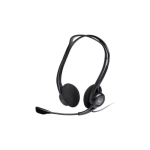
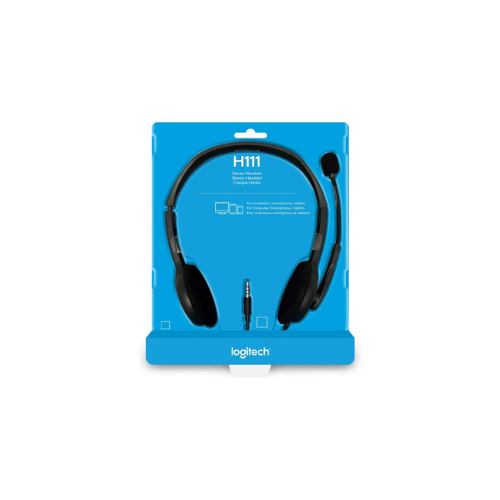

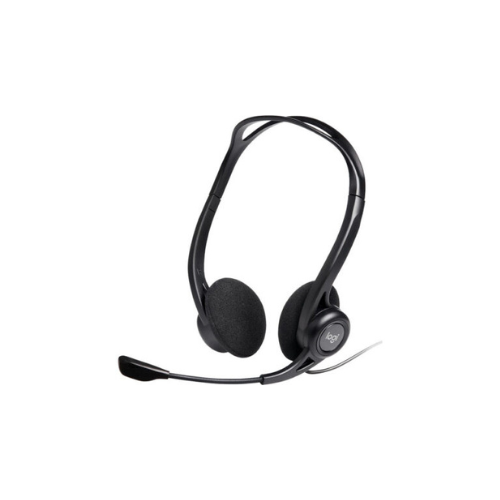
Logitech H111 Stereo Headset
Key Features
Brand:Logitech
On-Ear Design
Stereo Sound
180° Rotating & Adjustable Boom Mic
Adjustable Headband
3.5mm Audio Jack Connection
32 Ohms Impedance
Works with Common Calling Apps
Works with Computers, Smartphones & More
7.71′ Cable
1 Year Warranty
Logitech H111 Stereo Headset: Ultimate High-Speed Professional Guide
The Logitech H111 Stereo Headset is a powerhouse in the professional essential corporate communication, remote learning, and casual call market. This high-efficiency multi-device headset eliminates background mic distortion while delivering crisp, clean audio for virtual meetings, voice calls, and basic interactive applications . It serves as a reliable, heavy-duty solution designed to streamline digital communication data, customer service operations, and multi-platform voice tracking for businesses of all sizes. By utilizing advanced acoustic engineering, this flexible machine helps users boost daily productivity, reduce administrative downtime, and maintain a highly organized workspace. Modern professionals rely on this hardware to eliminate disruptive communication bottlenecks and automate call clarity isolation tasks. Its robust build quality ensures it handles high-volume communication cycles without breaking or experiencing performance drops. Call center agents and remote operators looking to scale their digital office infrastructure find this device to be an indispensable asset for daily computing production.
This Logitech comprehensive guide covers everything you need to optimize this device for your business workflow.
Key Technical Specifications
Understanding the hardware capabilities helps you maximize your investment. The device balances raw speed with broad connection configurations.
- Audio Layout : Dual-channel stereo configuration for balanced audio output
- Microphone Mechanics : Rotating 180-degree boom design for left or right orientation
- Input Interface : Universal 3.5mm analog audio jack connection
- Frequency Range : Broad 20Hz to 20kHz acoustic response range for vocal clarity
- Cable Architecture : Rugged 7.7-foot or 235-centimeter length for free desk movement
- Form Factor : Lightweight adjustable headband with soft foam ear cushions
Top Features and Business Benefits
Clear Stereo Acoustic Sound
The advanced dual-channel driver technology means you never miss critical dialogue details during phone calls or virtual trainings. It registers audio signals and processes vocal tones at lightning speeds, keeping your communication or training pipeline moving without delays.
Noise-Cancelling Rotating Microphone
The Logitech built-in directional microphone allows you to filter out disruptive ambient office chatter completely. You can maximize your daily call accuracy comfortably without being tethered to static mic positions, as the boom rotates out of the way when not in use
Universal Multi-Device Integration
Integrate the machine seamlessly into any office environment. Desktop operators and mobile professionals can share the headset matrix across laptops, smartphones, and tablets via the standard 3.5mm audio jack. Plug-and-play functionality is fully supported across all operating systems.
Ultra-Lightweight Adjustable Design
Using specific flexible polymer material engineering, the structural weight is minimized to prevent physical fatigue during prolonged usage. This is ideal for highlighting critical focus, keeping users comfortable across extended shifts, and maintaining high daily workspace output.
Simple Step-by-Step Setup Guide
Follow these steps to get your professional stereo headset running quickly.
Step 1: Unpack and Adjust the Frame
Remove all protective packaging wraps from the headset box. Gently expand the adjustable headband slides on both sides to match your physical head shape profile comfortably.
Step 2: Position the Microphone Boom
Rotate the flexible microphone arm downward from its upright storage position. Align the sensor capsule roughly one to two inches away from the corner of your mouth for optimal vocal pickup.
Step 3: Connect the Analog Interface
Insert the 3.5mm analog audio connector directly into the corresponding headphone or auxiliary input port on your laptop, desktop computer tower, or mobile device.
Step 4: Configure Operating System Settings
Open your host computer system settings menu and locate the sound management tab. Designate the newly attached hardware as your primary default input and output source to complete the device recognition process.
Effective Troubleshooting and Maintenance
Keep your machine operating at peak performance with basic maintenance habits.
Resolving Low Volume Jams
Turn off any software mute triggers immediately if your audio drops out or feels faint. Open your computer sound control panel, access the device hardware properties, and slide the input capture level upward to refresh the system buffer.
Fixing Single-Channel Audio Drops
If the sound clips or only plays out of one ear cup, verify that the 3.5mm connector pin is pushed entirely inside the port jack. Ensure the metal plug surface is clean and free of dust or lint blocking the electrical connection pathways.
Cleaning the Foam Ear Cushions
Poor cushion hygiene, oil transfer, or cosmetic smudges on the foam pads indicate a dirty contact layer. Turn off the host machine, remove the foam ear pads carefully, and gently brush away debris with a dry lint-free cloth without using heavy chemical liquids.
Frequently Asked Questions
Does this headset require a software driver download?
No. The analog framework operates on pure hardware plug-and-play technology, meaning it requires no extra software installations, internet connections, or driver updates to function.
Can I use this headset with older desktop towers?
Yes. If your desktop workstation features separate audio-out and microphone-in sockets, you can attach a standard 3.5mm splitter adapter to bridge the connection seamlessly