

 Brother Printers
 WhiteBoard
 IP PBXs





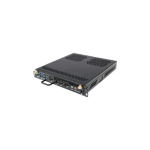
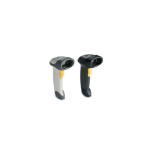
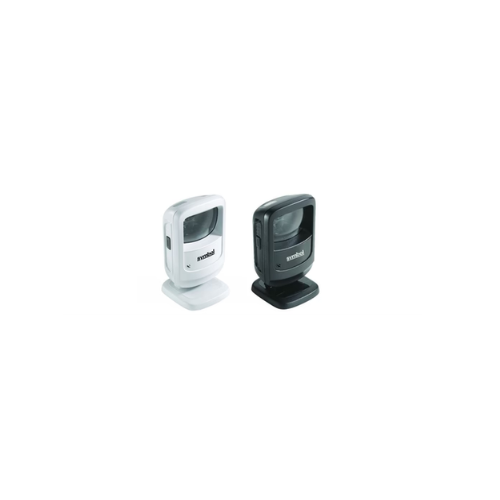

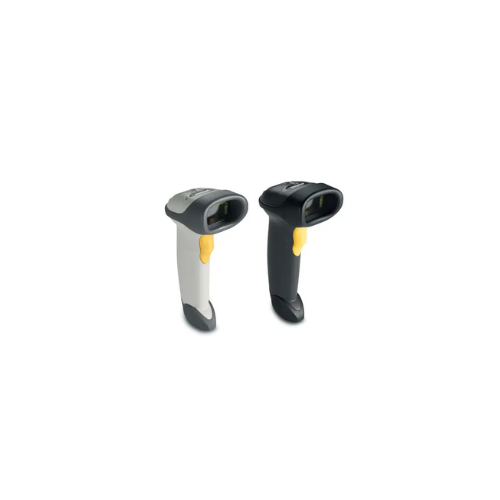
ZEBRA DS9208 Barcode Scanner (USB Kit)
Key Features
Brand: ZEBRA
Handheld and hands-free modes Dual mode functionality saves time; keeps lines moving and minimizes wait times; Multi-code mode Allows simultaneous scanning of a group of bar codes and reports only the selected bar code(s) in a pre-selected order
Picklist mode Select and scan a single bar code from a bar code menu or picklist ideal for items that are too small for bar code labels such as nuts and bolts in a hardware store to tiny cosmetic brushes
Industry-first spherical exit window Improves scanning performance by minimizing stray light and reducing reflections to the imaging sensor
Dual LEDs plus programmable beeper volume, frequency and duration Protects productivity in noisy environments, such as theaters, airports and restaurants by providing both visual and audible confirmation of successful scans; convenient side trigger allows users to adjust beeper volume on-the fly
1 Year Warranty
Ultimate Guide to Zebra DS9208 Omni-Directional Hands-Free Barcode Scanner USB Kit
The Zebra DS9208 Barcode Scanner USB Kit (Model: DS9208-SR4NNU21ZE) is a versatile, high-velocity 2D presentation imager engineered for high-volume retail points-of-sale, hospitality desks, and ticketing windows . Combining an omni-directional scanning field with seamless plug-and-play USB connectivity, this desktop unit processes both traditional printed barcodes and digital screen formats. It provides a reliable, low-maintenance hardware solution that accelerates customer checkouts, trims transaction queues, and boosts employee productivity
Key Features and Specifications
This commercial-grade digital imager balances high-resolution optic tracking with a space-saving geometric frame.
- Omni-Directional 2D Imager : Scans 1D, 2D, QR codes, PDF417, and Data Matrix labels at any physical angle without precise orientation alignment.
- Screen Data Capture : Reads digital barcodes effortlessly off smartphone screens for mobile couponing, loyalty profiles, and boarding tickets.
- Dual Operation Modes : Transitions instantly between hands-free presentation countertop scanning and handheld operation for bulky items.
- Plug-and-Play USB Kit : Self-detects host system protocols over standard USB interfaces to establish instant keyboard emulation mapping.
- Spherical Exit Window : Minimizes stray reflections and internal glare to guarantee top optical performance on glossy labels.
- Dual Visual LEDs & Beeper : Provides clear audible chirps and twin green LED status lights for accurate validation in loud spaces.
- Integrated Picklist Mode : Selects and isolates a single barcode configuration from a dense menu array, preventing accidental duplicate lines.
Optic Performance and Operational Range
The Zebra DS9208 overcomes checkout slow-downs by using advanced omni-directional digital imaging hardware . Legacy single-line laser register systems force employees to square up labels perfectly before reading, dragging down checkout speed.
This scanner takes a fast, multi-line image slice, parsing matrix barcodes and faint or torn labels in milliseconds. The optical window reads details from a few inches up to a 14-inch physical depth of field , letting operators move products past the sensor glass naturally.
Simple Plug-and-Play USB Setup Steps
Getting your desktop presentation imager connected to your register or computer station takes only a few moments.
Physical Cable Installation
- Unpack the hardware kit and locate the standard 7-foot heavy-duty shielded USB cord.
- Insert the modular RJ45 terminal plug into the socket recess on the base of the DS9208 handle, pushing until it clicks.
- Plug the opposite standard USB type-A connector directly into an open port on your computer tower or POS cash dock.
Host Software Matching
- Wait for your operating system to auto-detect the peripheral ; it will automatically default to standard USB HID Keyboard Emulation mode .
- Open a standard text editing application (like Notepad or Microsoft Word) on your desktop.
- Pass a retail barcode in front of the scanner window ; the barcode digits will instantly populate the text sheet, followed by an automatic carriage return (Enter key).
Advanced Management and Maintenance
The system features simple software tuning options for large retail rollouts.
- 123Scan Utility Syncing : Connect the scanner via USB to your PC and launch the official Zebra 123Scan Utility software to customize prefix strings, suffix parameters, or disable specific code categories.
- On-the-Fly Sound Controls : Adjust the internal speaker volume, tone pitch, or chime length using the handy side trigger button to quiet the device in calm office spaces.
Frequently Asked Questions
Does the Zebra DS9208 require a standalone power brick?
No, the scanner operates on a low-current bus system that draws all its necessary operating power directly from the host computer or point-of-sale station via the main USB data cable. This single-wire footprint minimizes outlet clutter behind your checkout counters
Can this scanner handle driver’s license formatting?
Yes, certain high-end sub-models in this series feature dedicated DL parsing firmware. This allow the optical core to read the PDF417 matrix codes on the back of official ID cards, splitting birthdates and addresses instantly into form fields.
How do I reset the scanner back to original factory defaults?
You can easily download the digital reference guide or access the Zebra 123Scan software app to print out a specialized “Set Factory Defaults” programming barcode. Scanning this barcode with the lens resets all internal logic parameters to factory standard settings in seconds.
Is this scanner built to survive accidental counter drops?
Yes, the outer housing is engineered to withstand repeated drops onto solid concrete surfaces from standard counter heights. The internal electronics are shock-isolated to safeguard the optics and main board during daily commercial use