

 Brother Printers
 WhiteBoard
 IP PBXs





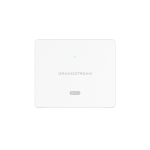
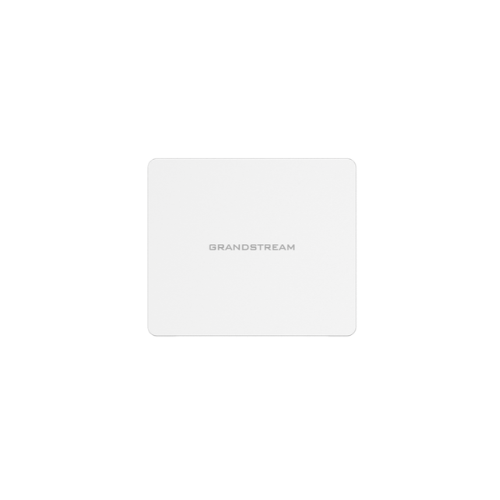
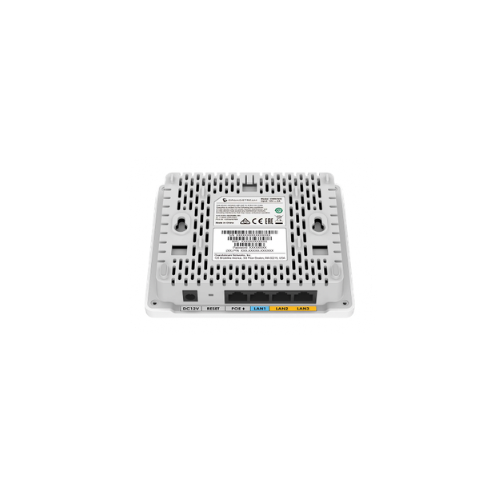

Grandstream GWN7603 Wi-Fi 5 Access Point
Key Features
Brand:Grandstream
1.27Gbps aggregate wireless throughput, 1x Gigabit and 3x Gigabit wireline speed
Up to 100 meters coverage range
Self power adaptation upon auto detection of PoE/PoE+ and PSE
Anti-hacking secure boot and critical data/control lockdown via digital signatures, unique security certificate/random default password per device
Support up to 100+ Wi-Fi client devices
Advanced QoS to ensure real-time performance of low-latency applications
1 Year Warranty
Grandstream GWN7603 Inwall Wi-Fi Access Point: Ultimate High-Speed Professional Guide
The Grandstream GWN7603 Inwall Wi-Fi Access Point is a powerhouse in the professional enterprise telecommunications, hospitality, and modern office network market . This Grandstream high-performance wall-plate wireless gateway eliminates physical workspace boundaries while delivering crisp, clean data streaming for corporate operations, hotel guest rooms, and collaborative tasks. It serves as a reliable, heavy-duty solution designed to streamline digital communication data, multi-device traffic tracking, and high-frequency active networking for organizations of all sizes. By utilizing advanced enterprise-grade radio frequency engineering, this flexible machine helps companies boost daily productivity, reduce network connection downtime, and maintain a highly integrated workplace. Modern workplaces rely on this Grandstream hardware to eliminate signal data bottlenecks and automate compact wireless deployment tasks. Its robust build quality ensures it handles high-volume communication cycles without dropping signals or experiencing performance drops. Businesses looking to scale their wireless network infrastructure find this device to be an indispensable asset for daily processing production
This comprehensive guide covers everything you need to optimize this device for your business workflow.
Key Technical Specifications
Understanding the hardware capabilities helps you maximize your investment. The device balances expansive radio network coverage with an integrated multi-port wired switch.
- Wireless Standard : Dual-band 802.11ac Wave-2 Wi-Fi 5 operating architecture
- Data Throughput : Up to 1.27 Gbps aggregate wireless throughput capacities
- Antenna Engineering : Dual-band 2×2:2 MU-MIMO technology for multi-device efficiency
- Wired Interface : 4 total Gigabit Ethernet ports featuring 1 uplink and 3 downstream slots
- Power Output : 2 integrated PSE ports capable of delivering PoE to secondary devices
- Client Capacity : Supports 100 plus concurrent wireless devices within a 100-meter range
Top Features and Business Benefits
Wave-2 Dual-Band Wireless Speeds
The advanced 802.11ac wireless technology means you never experience stuttering bandwidth degradation or dropped connections during heavy data tasks. It translates digital radio frequencies and processes data packets at lightning speeds, keeping your communication or administrative pipeline moving without delays.
Integrated Power Sourcing Switch
The built-in Power Sourcing Equipment ports allow you to extend data and electric power to downstream hardware directly from the wall unit. You can connect and power desktop IP phones or security cameras comfortably without being tethered to separate power adapters or extra cable runs.
Smart Enterprise Client Management
Integrate the machine seamlessly into high-density commercial spaces like hotel suites or apartments. The internal processors balance over 100 active connections simultaneously through advanced Quality of Service rules. Low-latency traffic handling is fully supported across all virtual network segments.
Anti-Hacking Security Infrastructure
Using specific digitally signed firmware and a unique pre-installed random password profile per chassis, the hardware locks down unauthorized network entry. This is ideal for highlighting critical corporate data protection, enforcing WPA3 wireless encryption compliance, and guarding physical local area networks.
Simple Step-by-Step Setup Guide
Follow these steps to get your professional in-wall access point running quickly.
Step 1: Unpack and Prepare Wall Junction
Remove all protective packaging wraps and surface labels from the device box. Turn off the localized circuit breaker and clean the wall junction box path to prepare for flush panel alignment.
Step 2: Connect the Power Uplink Line
Plug an active Power over Ethernet network cable from your main building switch into the designated back uplink port slot. Verify that the system diagnostic indicator light initializes to show incoming power
Step 3: Secure Chassis to Mount Plates
Align the frame hook nodes with your standard wall junction container array. Use the included structural screws to fix the main chassis frame flat against the wall faceplate configuration.
Step 4: Complete Centralized Cloud Provisioning
Open your network browser panel or cloud management account screen. Input the unique Grandstream hardware identification address to trigger zero-touch configuration profiles and complete the device recognition process.
Effective Troubleshooting and Maintenance
Keep your machine operating at peak performance with basic maintenance habits.
Resolving Connection Sync Jams
Turn off the power or cycle the main network switch line immediately if your cloud management tool fails to locate the access point. Refresh your network address server allocations to clear frozen data blocks within the system interface.
Fixing Downstream Port Drops
If your attached desktop IP phones or peripheral hardware lose network links, check your power delivery limits. Ensure the main incoming line provides a stable PoE plus source to successfully drive the internal power sharing channels.
Cleaning the Faceplate Frame
Poor physical cleanliness, heavy dust accumulation, or connection port smudges indicate a dirty exterior shell. Disconnect the network link line completely and wipe the outer plastic casing gently using a dry microfiber cloth without applying liquid solvents.