

 Brother Printers
 WhiteBoard
 IP PBXs





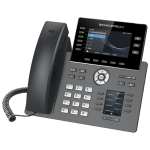
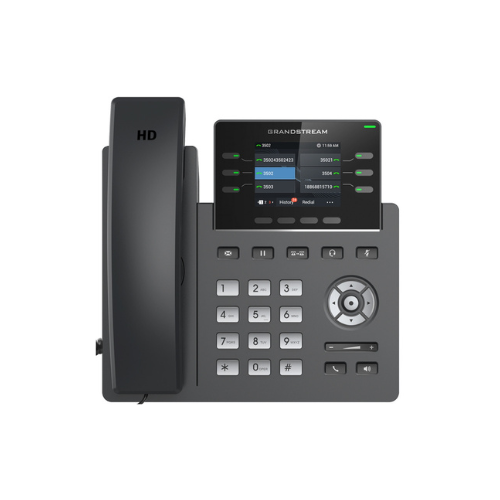

Grandstream GRP2615 IP Phone
Key Features
Brand: Grandstream
4.3″ Color LCD Screen-
HD audio, handset, and speakerphone with support for wide-band audio
10 line keys with up to 16 SIP accounts
40 built-in digital BLF keys; available extension module offers 40 BLF/speed-dial keys per module[GBX20]
Enterprise-level protection including secure boot, dual firmware images, and encrypted data storage
integrated dual-band Wi-Fi 802.11 a/b/g/n/ac (2.4Ghz & 5Ghz)
Dual switched auto-sensing 10/100/1000 Mbps Gigabit Ethernet ports with integrated PoE
Swappable faceplates to allow for easy logo customization
Integrated Bluetooth
4.3″ Color LCD extension module
Support for G7.29A/B, G.711µ/a-law, G.726, G.722(wide-band), G723, iLBC, OPUS, in-band and out-of-band DTMF(in audio, RFC2833, SIP INFO)
Layer 2 QoS (802.1Q, 802.1P) and Layer 3 (ToS, DiffServ, MPLS) QoS
1 Year Warranty
Grandstream GRP2615 IP Phone Review and Technical Overview
Line Keys: 10 Physical Keys with up to 40 Virtual Keys
SIP Accounts: 5 Concurrent Session Initiation Protocol Accounts
Wireless Interfaces: Integrated Dual Band Wi-Fi and Bluetooth 5.0
Network Ports: Dual Switched Auto Sensing 10/100/1000 Mbps Gigabit Ports
Power Hardware: Integrated Power over Ethernet Support
Audio Codecs: Wideband G.722, Opus, Narrowband G.711, G.729AB
Device Management: Unified Grandstream Device Management System Cloud Provisioning
- Attach the phone stand to the slots on the bottom of the phone casing, selecting either the high or low angle position slot.
- Connect the coiled handset cord to the phone jack marked with a physical handset icon.
- Plug the remaining end of the coiled cable securely into the bottom base socket of the handset.
- If mounting the phone to an office partition wall, slide an optional plastic wall mount bracket onto the back panel slots.
- Connect a standard Ethernet network cable from an active wall jack or network switch to the LAN port on the back of the phone.
- The phone will automatically draw electrical operating power directly from the network cable if your office uses a Power over Ethernet switch.
- The screen will light up and begin the system boot cycle immediately upon sensing network power.
- Pass your local wired network signal through to a desktop computer terminal by linking a second Ethernet cable from the phone PC port to your computer tower